How to Prepare Your PC for Data-Safe Disposal

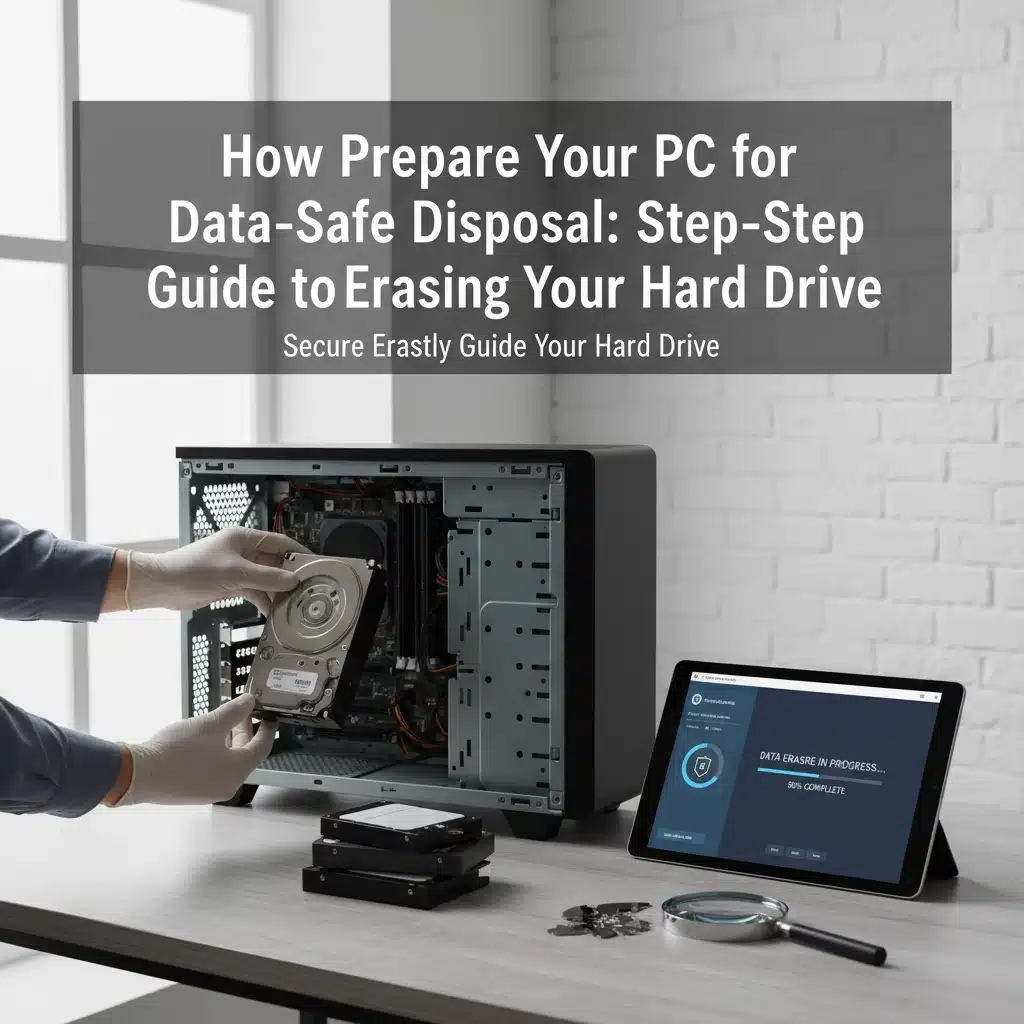
When you’re ready to dispose of your old PC, simply deleting files or formatting your hard drive won’t protect your personal data. Professional data recovery services can easily retrieve “deleted” information from improperly wiped drives, potentially exposing sensitive financial records, personal documents, and login credentials.
Proper data sanitisation requires specific techniques that overwrite your information permanently. Whether you’re upgrading your home computer or managing business equipment disposal, following these step-by-step procedures ensures your data stays secure throughout the recycling process.
Essential Pre-Disposal Preparation
Before beginning any erasure process, complete these critical preparation steps to protect important information and ensure smooth data destruction.
Back Up Important Files Transfer any documents, photos, or software you want to keep to an external drive or cloud storage service. Once you begin secure erasure, all data becomes permanently unrecoverable.
Deauthorise Software and Services Log out of all accounts including iTunes, Adobe Creative Suite, Microsoft Office, and streaming services. Many software licences limit the number of authorised devices, so deauthorisation frees up these slots for your new computer.
Document Hardware Details Record your computer’s serial number, model information, and drive specifications. This documentation helps with warranty claims and provides reference information if issues arise during the disposal process.
Gather Installation Media Locate original software discs and product keys for programs you’ll reinstall on a new system. While not essential for data destruction, having these materials ready streamlines your transition to replacement hardware.

Understanding Your Storage Type: HDD vs SSD
Different storage technologies require different secure erasure approaches. Identifying your drive type determines which methods work most effectively for permanent data destruction.
Traditional Hard Disk Drives (HDDs) These drives store data on spinning magnetic platters. HDDs require overwriting techniques that replace your original information with random data patterns. The magnetic storage method means data remains physically present until new information overwrites the same storage locations.
Solid State Drives (SSDs) Modern SSDs use flash memory chips without moving parts. These drives include built-in secure erase commands that reset memory cells to factory conditions. SSD architecture makes traditional overwriting methods less effective, requiring specialised erasure approaches.
Check Your Drive Type Open “This PC” in Windows Explorer, right-click your main drive (usually C:), select “Properties,” then navigate to the “Tools” tab. Click “Optimize” to see whether your drive shows as “Hard disk drive” or “Solid state drive.”
Built-In Windows Erasure Methods
Windows includes several data destruction options that provide reasonable security for most users. These built-in tools offer convenient solutions without requiring additional software downloads.
Windows Reset with Drive Cleaning Windows 10 and 11 include a reset feature with secure erasure capabilities:
- Open Settings and navigate to “Update & Security”
- Select “Recovery” from the left menu
- Under “Reset this PC,” click “Get started”
- Choose “Remove everything”
- Select “Remove files and clean the drive” when prompted
- Follow the remaining prompts to complete the process
This method performs a single-pass overwrite of your drive space, which provides adequate security for personal use while remaining relatively quick to complete.
Command Line Diskpart Utility For users comfortable with command-line interfaces, Windows diskpart provides more direct control over the erasure process:
- Type “cmd” in the Start menu and select “Run as administrator”
- Enter “diskpart” and press Enter
- Type “list disk” to display available drives
- Select your target drive with “select disk X” (replace X with your drive number)
- Execute “clean all” to begin secure overwriting
This process takes significantly longer than standard formatting but provides more thorough data destruction.

Third-Party Software Solutions
Professional data destruction software offers advanced features and stronger security guarantees than built-in Windows tools. These applications provide multiple overwrite patterns and detailed verification reports.
DBAN (Darik’s Boot and Nuke) This free, open-source tool runs independently of your operating system, ensuring complete drive access:
- Download DBAN and create a bootable USB drive or DVD
- Boot your computer from the DBAN media
- Select your target drive and choose an erasure method
- Allow the process to complete (this can take several hours)
DBAN supports multiple erasure standards including DoD 5220.22-M and Gutmann method, providing military-grade data destruction for sensitive information.
Manufacturer-Specific Tools Many drive manufacturers provide their own secure erasure utilities optimised for their hardware. These tools often work more efficiently than generic solutions:
- Western Digital: WD Security and WD Drive Utilities
- Seagate: SeaTools with SecureErase
- Samsung: Samsung Magician (for SSDs)
- Intel: Intel SSD Toolbox
Download these tools directly from manufacturer websites to ensure authenticity and compatibility with your specific drive model.
SSD-Specific Secure Erase Procedures
Solid state drives require specialised approaches that work with their unique architecture. Standard overwriting methods prove less effective on SSDs due to wear leveling and over-provisioning features.
ATA Secure Erase Command Most modern SSDs support the ATA Secure Erase command, which resets all memory cells to factory conditions:
- Download and run a tool like “HDDErase” or your SSD manufacturer’s utility
- Select your target SSD from the drive list
- Choose “Secure Erase” from available options
- Confirm your selection and allow the process to complete
This method typically finishes within minutes while providing excellent security by resetting encryption keys and memory cell states.
Encryption-Based Erasure If your SSD uses hardware encryption, destroying the encryption key renders all data unrecoverable:
- Enable BitLocker or your SSD’s built-in encryption
- Allow full drive encryption to complete
- Use manufacturer tools to reset encryption keys
- Perform a standard format to complete the process
This approach works particularly well for time-sensitive disposals since key destruction happens almost instantly.

Verification and Quality Assurance
After completing secure erasure, verify that data destruction succeeded and your drive remains functional for its next use cycle.
Post-Erasure Testing Boot your computer and confirm that no personal files remain accessible. Check common storage locations including:
- Desktop and Documents folders
- Downloaded files directory
- Browser history and saved passwords
- Email client data stores
- Temporary file locations
Drive Health Verification Run basic diagnostics to ensure the erasure process didn’t damage your drive:
- Access “Computer Management” from the Start menu
- Navigate to “Disk Management”
- Verify your drive appears and shows correct capacity
- Create a small test partition and file to confirm write functionality
Successfully completing these tests indicates your drive underwent proper secure erasure while maintaining operational integrity.
When to Consider Physical Destruction
Certain situations require physical drive destruction rather than software-based erasure methods. Understanding these scenarios helps you choose appropriate data protection measures.
High-Security Requirements Military contractors, financial institutions, and healthcare organisations often mandate physical destruction for drives containing classified or regulated information. Software erasure, regardless of thoroughness, cannot meet these stringent security requirements.
Failed or Damaged Drives Drives with mechanical failures, electronic damage, or corrupted firmware may not respond to software erasure commands. Physical destruction provides the only reliable method for securing data on non-functional storage devices.
Time-Critical Disposals When immediate disposal becomes necessary, physical destruction offers instant security. Professional shredding services can destroy drives within minutes while providing detailed destruction certificates.
Professional E-Waste Services and Compliance
Working with certified e-waste recycling services ensures proper handling of both data security and environmental compliance requirements.
WEEE Regulation Compliance UK WEEE regulations require proper disposal of electronic equipment through authorised treatment facilities. Professional recycling services handle regulatory compliance while providing secure data destruction certificates.
Certified Data Destruction Reputable e-waste processors offer certified data destruction services with detailed documentation:
- Secure chain of custody procedures
- Witnessed destruction processes
- Destruction certificates with serial numbers
- Compliance with BS EN 15713 standards
At Northamptonshire E-Waste and Electrical Recycling, we provide comprehensive computer disposal services that combine secure data destruction with environmentally responsible recycling.
Final Security Checklist
Before disposing of your prepared computer, complete this final verification checklist to ensure comprehensive data protection:
- ✓ All important files backed up to external storage
- ✓ Software and service accounts deauthorised
- ✓ Secure erasure completed using appropriate method for your drive type
- ✓ Post-erasure verification tests passed
- ✓ Drive health confirmed for continued operation
- ✓ Disposal method selected (professional recycling recommended)
Following these procedures protects your personal information while ensuring your old computer can be safely recycled or refurbished for continued use. Proper preparation prevents data breaches while supporting sustainable electronics disposal practices.
Remember that data security represents just one aspect of responsible computer disposal. Environmental regulations and material recovery requirements make professional e-waste services the preferred choice for comprehensive disposal solutions.